
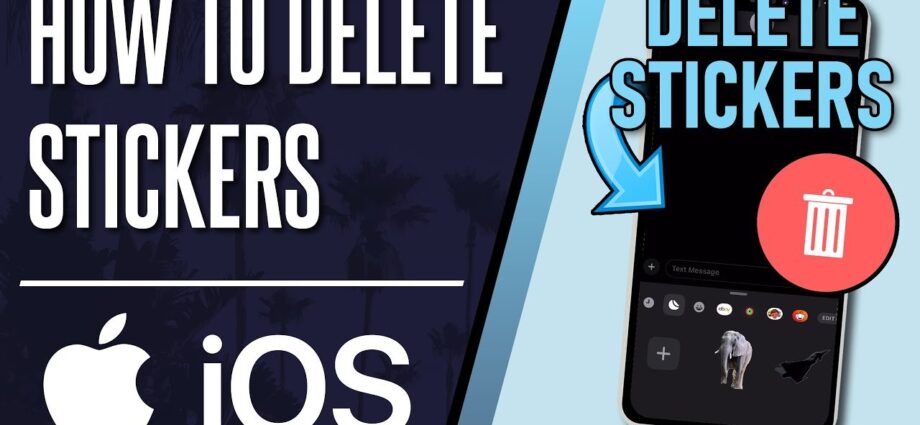
Deleting stickers on your iPhone is a straightforward process that can help tidy up your messaging app. Just open your iMessage, tap on the app drawer, and locate the stickers you want to remove.
Swipe left on the sticker pack to find the delete option, and with a quick tap, you can clear out the clutter from your screen.
Whether you want to make space or simply reorganize, learning how to delete stickers on iPhone will keep your messaging experience fresh and enjoyable. Stay with us as we guide you through this simple yet effective process.

How to Delete Stickers on iPhone
If you’re an iPhone user, you might have noticed how fun and engaging stickers can make your messaging experience. However, sometimes you may want to declutter your sticker collection. Maybe you installed a new sticker pack and no longer use the old ones, or perhaps you just want to make it easier to find your favorite stickers. If you’re wondering how to delete stickers on your iPhone, you’ve come to the right place! In this article, we will explore various methods for deleting stickers from your iPhone, whether from the iMessage app, third-party apps, or even the App Store. Each section will provide detailed steps, tips, and helpful insights to assist you in managing your sticker collections effectively.
Understanding Stickers on iPhone
Before we dive into the deletion process, let’s clarify what stickers actually are. Stickers are fun digital graphics that you can use to enhance your messages. They come in various shapes, sizes, and themes, and you can find them in different apps like iMessage and other messaging platforms.
There are two main types of stickers available on iPhone:
- iMessage Stickers: These are stickers specifically designed for use within the Messages app. You can find them in the App Store or as part of sticker packs from various developers.
- Third-Party Stickers: These stickers come from other applications, such as WhatsApp or Snapchat. They often include animated stickers or themed stickers based on popular culture.
Understanding these types will help you know exactly where to look when it comes time to delete stickers from your iPhone.
Deleting iMessage Stickers
If you want to delete stickers from iMessage, follow these simple steps. The process is straightforward and can help you clean up your sticker collection effectively.
Removing iMessage Sticker Packs
To delete sticker packs from iMessage, you will generally need to remove the entire pack. Here’s how:
- Open the Messages app on your iPhone.
- Tap on any conversation to open it.
- In the bottom row, where you see the app icons (like the App Store icon), swipe left until you see the More button (three dots).
- Tap on More, then select the Sticker icon.
- In the sticker drawer, you’ll see all your stickers and sticker packs.
- Find the sticker pack you wish to delete, then swipe left on the pack you want to remove.
- Tap Delete to remove the sticker pack from your iMessage.
Deleting sticker packs this way will ensure they no longer appear in your Messages app.
Removing Individual iMessage Stickers
If you want to get rid of individual stickers from a pack, you’ll need to check if that’s an option. Unfortunately, iOS does not support deleting individual stickers from a pack. You can only delete the entire sticker pack.
Deleting Stickers in Third-Party Apps
Many users enjoy using third-party apps for stickers. Apps like WhatsApp, Snapchat, and Instagram also have their own sticker collections. Here’s how to manage stickers in those apps.
WhatsApp Stickers
To delete stickers from WhatsApp, follow these steps:
- Open the WhatsApp app on your iPhone.
- Go to any chat where you can send a message.
- Tap the Sticker icon next to the text box.
- At the bottom, you’ll see your sticker packs. Tap the + icon.
- If you want to delete a sticker pack, find the pack you want to remove and tap on the Delete (trash bin) icon next to it.
You can also rearrange your stickers here for better access.
Snapchat Stickers
Stickers on Snapchat can be managed as well. Here’s how to delete any unwanted stickers:
- Open the Snapchat app on your iPhone.
- Take a photo or video.
- Tap on the Sticker icon to explore your sticker collection.
- Scroll through the sticker options and find the one you want to delete.
- Tap and hold on the sticker until options appear.
- Select the option to Remove or Delete it from your favorites.
This will ensure your sticker collection stays manageable and relevant to your needs.
Managing Sticker Packs from the App Store
If you’ve downloaded sticker packs from the App Store, you might want to delete them directly from your device. Here’s how you can do that:
Steps to Delete Sticker Packs from the App Store
- Open the App Store on your iPhone.
- Tap on your profile picture in the top right corner.
- Select Purchased to view all apps you’ve downloaded.
- Look for the sticker pack app you want to remove.
- Swipe left on the app, and tap Delete or Uninstall.
This will remove the sticker pack app from your device entirely and free up space.
Tips for Managing Your Stickers
Managing stickers can sometimes get overwhelming, especially if you download many packs. Here are some handy tips to maintain a neat sticker collection:
Organize Your Sticker Packs
Organizing your sticker packs can simplify the process of finding your favorites:
- Remove packs you don’t use often.
- Arrange the packs according to themes (like holidays, animals, etc.) if the app allows it.
- Regularly check for unused packs and delete them.
Keep Your Favorites Handy
If you have certain stickers you love to use, make sure they are always easy to find:
- Create a “Favorites” section if the app allows.
- Pin important packs to the top of your sticker drawer.
Stay Updated
Always ensure that your apps are updated to get the latest features, including sticker management options. To update your apps:
- Open the App Store.
- Tap Updates to check for any available updates.
- Update any apps that need it.
Staying updated lets you take advantage of improved features in sticker management.
Common Issues and Troubleshooting
Sometimes, users may encounter issues while trying to delete stickers or packs on their iPhone. Here’s how to troubleshoot common problems:
Stickers Not Deleting
If you find that your stickers are not deleting as expected, check the following:
- Make sure you are following the correct steps for the app you are using.
- Restart your iPhone to try refreshing the app.
- Ensure that there are no pending app updates that might affect functionality.
App Glitches
If an app seems to be glitching while managing stickers:
- Close the app and reopen it to see if that resolves the issue.
- Check for updates for that particular app.
- Uninstall and reinstall the app as a last resort if problems persist.
Keeping your apps running smoothly is essential for an enjoyable messaging experience.
Using stickers can bring a lot of fun to your digital conversations. They add personality, emotion, and style to your messages. However, managing your sticker collection is equally important. By following the steps outlined above, you can easily delete stickers from your iPhone, whether they are in iMessage or from third-party applications. Regular maintenance of your sticker packs will help you keep your collection organized and enjoyable. Whether you want to remove outdated stickers or just tidy up your messaging experience, knowing how to delete stickers on your iPhone is a valuable skill. Happy messaging!
How to Delete / Remove Stickers on iOS 17
Frequently Asked Questions
How can I remove a sticker pack from my iPhone?
To remove a sticker pack from your iPhone, open the Messages app and start a new message. Tap the App Store icon next to the text field, then swipe left or right to find the sticker pack you want to remove. Press and hold the sticker pack icon until a menu appears, then select “Remove” or “Delete” to uninstall it from your device.
Is it possible to delete individual stickers from a sticker pack?
No, you cannot delete individual stickers from a sticker pack on your iPhone. If you wish to remove a specific sticker, you need to delete the entire sticker pack. You can reinstall the sticker pack later if you change your mind.
What should I do if I can’t find the option to delete a sticker pack?
If you can’t find the option to delete a sticker pack, try restarting your iPhone. Sometimes, a simple reboot can resolve minor glitches. If the issue persists, ensure that your iOS is updated to the latest version, as updates can enhance functionality and fix bugs.
Can I hide sticker packs instead of deleting them?
Yes, you can hide sticker packs without deleting them. In the Messages app, go to the App Store section, tap the ‘More’ button (three dots), and select ‘Manage’ to see your sticker packs. From there, you can toggle off any sticker packs you wish to hide. This action will keep them installed but out of sight.
How do I access my downloaded sticker packs on my iPhone?
To access your downloaded sticker packs, open the Messages app and start a new conversation or open an existing one. Tap the App Store icon next to the text field. Here, you will see your installed sticker packs. You can swipe left or right to browse through them and tap on any pack to use the stickers.
Final Thoughts
To delete stickers on iPhone, open your Messages app and find the conversation with the stickers. Tap on the App Store icon next to the text box, then swipe left to locate the sticker pack you want to remove. Tap and hold the sticker pack’s icon until the options appear, then select “Remove” or “Delete.”
You can also manage your sticker packs through the App Store. Go to the App Store, find your purchased sticker packs under your account, and delete the ones you no longer want. This ensures your messaging experience stays clutter-free. Remember, knowing how to delete stickers on iPhone makes managing your messages much simpler.